How to Make a Flowchart for Word or Google Docs Without Dragging Shapes
Learn how to create a flowchart for Word or Google Docs without dragging shapes. Simple step by step method using text to diagram tools for clean results.

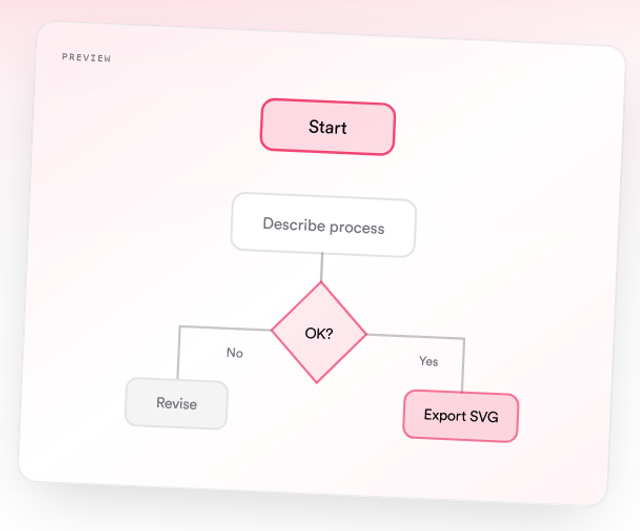
Creating a flowchart in Word or Google Docs can quickly become frustrating.
You insert shapes, connect arrows, try to align everything, and after spending a lot of time, the result still does not look clean.
There is a better way.
Instead of drawing everything manually, you can create a flowchart from text and simply insert it into your document.
TLDR (Quick Summary)
- You do not need to draw flowcharts manually in Word or Google Docs
- Writing your process in plain English is enough to generate a diagram
- Export your flowchart as PNG and insert it into your document
- This method is faster, cleaner, and easier to edit
- Tools like Diagflow help you generate diagrams instantly from text
Why Creating Flowcharts in Word or Google Docs Is Difficult
Most students and professionals use built in tools like shapes or SmartArt.
The problems include:
- Time consuming setup
- Alignment issues
- Messy connections
- Limited flexibility
This is why many people avoid using diagrams completely.
The Smarter Way to Create Flowcharts
Instead of dragging shapes, use a text to diagram approach.
You simply:
- Describe your process
- Generate a flowchart
- Download it
- Insert it into your document
This removes the need for manual design.
Step by Step: Create a Flowchart Without Drawing
Step 1: Write Your Process
Start by describing your steps clearly.
Example:
A user logs in. The system checks the details. If correct, the dashboard opens. If incorrect, an error message is shown.
Step 2: Generate the Flowchart
Use a tool like Diagflow by MonoEd.
Paste your text and generate the diagram.
The system will:
- Create structured steps
- Add decision points
- Connect everything correctly
Step 3: Export Your Diagram
Download your diagram as:
- PNG for documents and slides
- SVG for high quality or editing
Step 4: Insert Into Word or Google Docs
For Microsoft Word
- Open your document
- Click Insert
- Select Picture
- Upload your PNG file
For Google Docs
- Open your document
- Click Insert
- Select Image
- Upload from your computer
Step 5: Add a Caption
Always label your diagram.
Example:
Figure 3.1: Login Process Flowchart
Example: Text to Flowchart
Input:
A student receives an assignment, completes it, and submits it. If corrections are required, the student revises and resubmits. If approved, the process ends.
Output:
A clean flowchart with:
- Start and end points
- Process steps
- Decision points
Why This Method Is Better
Manual Method
- Slow
- Hard to align
- Looks unprofessional
Text to Diagram Method
- Fast
- Clean layout
- Easy to update
- Works across platforms
This is especially useful when working on deadlines.
When You Should Use This Approach
Use this method when:
- Writing SIWES reports
- Creating final year project documentation
- Preparing assignments
- Building presentation slides
Using Diagflow for Faster Results
Diagflow by MonoEd makes it easy to create diagrams without drawing.
You can:
- Turn text into flowcharts instantly
- Export as PNG or SVG
- Use diagrams in Word, Google Docs, Notion, or slides
It is designed for students who want clean results without spending hours on formatting.
Sample Prompt You Can Use
A customer places an order. The system verifies payment. If successful, the order is processed and confirmed. If not, the customer is notified and asked to retry.
Tips for Better Flowcharts
- Keep steps short and clear
- Use simple language
- Include decision points
- Avoid overcrowding
Common Mistakes to Avoid
- Trying to draw everything manually
- Using too many shapes
- Creating overly complex diagrams
- Skipping captions
Conclusion
You do not need to struggle with shapes and alignment in Word or Google Docs.
By using a text to diagram approach, you can:
- Save time
- Create cleaner diagrams
- Focus on your actual work
This is a simple upgrade that improves both your productivity and the quality of your documents.
FAQs
1. Can I create a flowchart directly in Word or Google Docs?
Yes, but it can be difficult and time consuming. Using a diagram tool is faster and produces better results.
2. What is the easiest way to create a flowchart?
The easiest way is to describe your process in text and generate the diagram automatically.
3. Which format should I use for Word or Google Docs?
PNG is the best option for documents and presentations.
4. Can I edit my flowchart after inserting it?
Yes. You can regenerate or edit the diagram before exporting it again.
5. Is this method suitable for students?
Yes. It is ideal for SIWES reports, final year projects, and assignments.
6. Do I need design skills to create flowcharts?
No. You only need to describe your process clearly.
About the Author
Mohammad-Jamiu B. Balogun, GMNSE
AI Security Researcher · Founder, MonoEd Africa
Mohammad-Jamiu is a First-Class Telecommunications Engineer and Best Graduating Student (BUK), and an AI security researcher. He founded MonoEd Africa to give Nigerian students AI-powered academic tools — from SIWES logbooks to final year projects. His work has reached over 10,000 students across Nigeria.